Turn Image Into Video AI to Create Stunning Animations
So, you have a killer photo and want to make it move? With AI, you can breathe life into a static image in just a few clicks. The basic idea is simple: you feed a high-quality image to an AI tool, tell it how you want it to move, and let the magic happen.
AI tools can create realistic camera movements, subtle parallax effects, or even fully animate a person or object in your photo, transforming it from a snapshot into a dynamic video clip in minutes.
A New Way to Create Visuals With AI
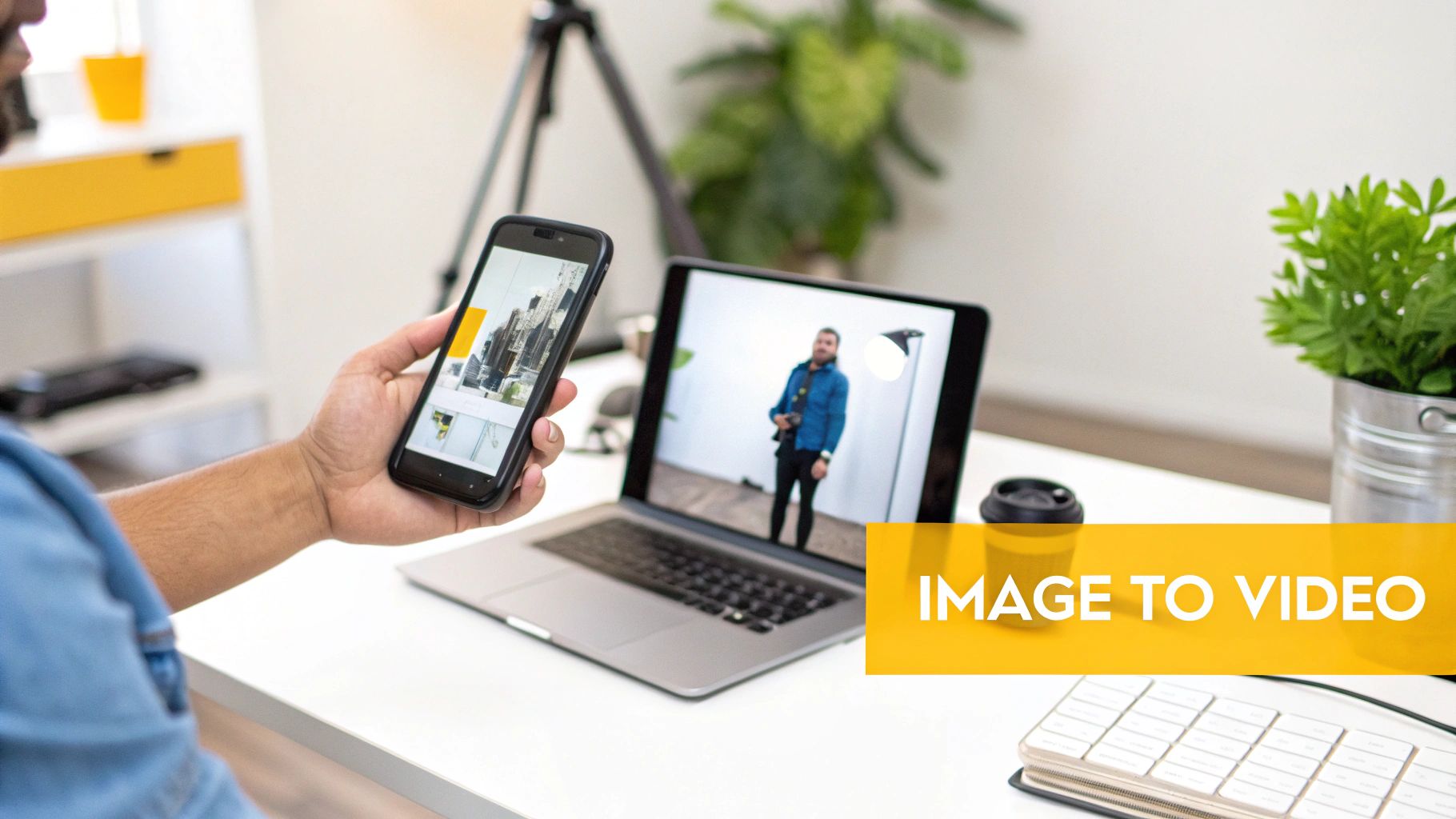
The ability to turn an image into a video with AI is changing the game for content creation. Not long ago, this kind of work required a skilled animator and a suite of expensive software. Now, it's something anyone can do with a single picture and an idea. This isn't just a cool party trick; it's a genuinely practical way to bring still moments to life, whether for an Instagram Reel, a product demo, or just a living portrait.
At its core, the technology relies on machine learning models that have been trained on mountains of visual data. When you upload your picture, the AI gets to work analyzing everything—subjects, backgrounds, lighting, and depth—to figure out how to apply motion in a way that looks natural. This opens up a whole new toolbox for creators and businesses.
Why This is a Big Deal for Content Creators
Let's be honest: video is king, but producing it can be a slow, expensive grind. AI animation swoops in to solve that problem. Instead of blocking out a day for a video shoot, you can generate eye-catching visuals from the photos you already have.
This isn't just a niche trend. The AI video generation market is expected to rocket from USD 3.67 billion in 2026 to an incredible USD 24.89 billion by 2036. That explosive growth is happening because these tools help creators and e-commerce brands create on-brand content at scale, without the huge time and budget commitments. You can explore the full research about AI video market projections to see the data driving this shift.
What used to take a team of animators weeks can now be done by one person in an afternoon. It's all about making high-quality motion content accessible to everyone.
Getting a Grip on the Basic Workflow
While every AI platform has its own quirks and features, the fundamental process to turn an image into a video with AI is pretty much the same everywhere. Once you understand the core steps, you're well on your way to mastering it.
Here's a quick rundown of the entire process from start to finish.
The Image-to-Video AI Workflow at a Glance
This table breaks down the core stages you'll go through when transforming a static image into a dynamic AI-generated video. Think of it as your high-level roadmap.
| Stage | Objective | Key Action |
|---|---|---|
| Image Preparation | Give the AI a clean, high-quality source to work with. | Pick a clear, well-lit image. Upscale it if the resolution is low. |
| Motion & Prompting | Tell the AI what kind of movement you want. | Choose a preset motion style or write a detailed text prompt. |
| Generation & Refinement | Create the video and tweak it until it's just right. | Run the generation process and adjust settings to improve the output. |
Mastering these three stages is the key to creating compelling, high-quality video clips from your still images.
Getting Your Source Image Ready for Flawless Animation
The final quality of your AI video hangs almost entirely on the quality of your starting image. Think of it like this: you can't build a sturdy house on a shaky foundation. To get a great result when you turn an image into a video, you first need to give the AI a clean, clear canvas.
It all starts with resolution. A high-resolution photo gives the AI more data to work with, which means sharper details and fewer weird artifacts in the final animation. If your image is pixelated or blurry, the AI will just end up guessing, leading to warped faces or distorted backgrounds.
Why Clarity and Lighting Make a Huge Difference
Beyond just the pixel count, the clarity of your subject is absolutely crucial. Your main subject needs to be in sharp focus, with a clear separation from whatever is behind it. An image where the foreground and background kind of blur together will confuse the AI, often causing unnatural or "wobbly" motion.
Good lighting is just as important. An evenly lit photo, without any harsh shadows or blown-out highlights, helps the AI understand the real shapes and curves of your subject. For instance, a poorly lit selfie can cause the AI to misinterpret facial features, and you'll end up with an animation that just feels… off.
Here's a simple rule of thumb I always follow: if a person has trouble making out the details in a photo, the AI will have an even harder time. Better input always equals more believable output.
Quick Fixes: Upscaling and Subject Isolation
But what if your photo isn't perfect? Don't worry, you're not out of luck. Many modern AI tools have features built right in to help you out.
- An upscaler can intelligently increase the resolution of a lower-quality image.
- A relighting tool can adjust the brightness and contrast to give you a more balanced look.
If you're aiming for those cool parallax effects or character animations, isolating your subject is a game-changer. By removing the background, you give the AI a crystal-clear focal point. This simple step prevents the background from "leaking" into the subject during the animation and makes everything look much cleaner and more professional. It’s a must-do for e-commerce product videos or animated portraits.
We cover how AI handles these kinds of complex visual tasks in our guide on how to generate photos with AI.
Honestly, taking just a few minutes to prep your image is the single best thing you can do to guarantee a fantastic result.
Choosing Your Motion Style and Crafting the Perfect Prompt
Once your image is prepped and ready, the fun part begins. This is where you decide how you want your static image to come alive and translate that vision into instructions the AI can follow. Think of yourself as a director—you have a whole toolbox of camera techniques and character actions to tell your story, and your prompt is the script that brings it all together.
When you turn an image into a video with AI, you’ll generally find the motion options fall into three buckets: cinematic camera moves, 3D parallax effects, and direct character animation. Each one achieves a completely different look and feel for your final video.
Before you jump in, it's worth remembering that the quality of your output is directly tied to the quality of your input. This quick decision tree can help you evaluate if your source photo is ready for animation.
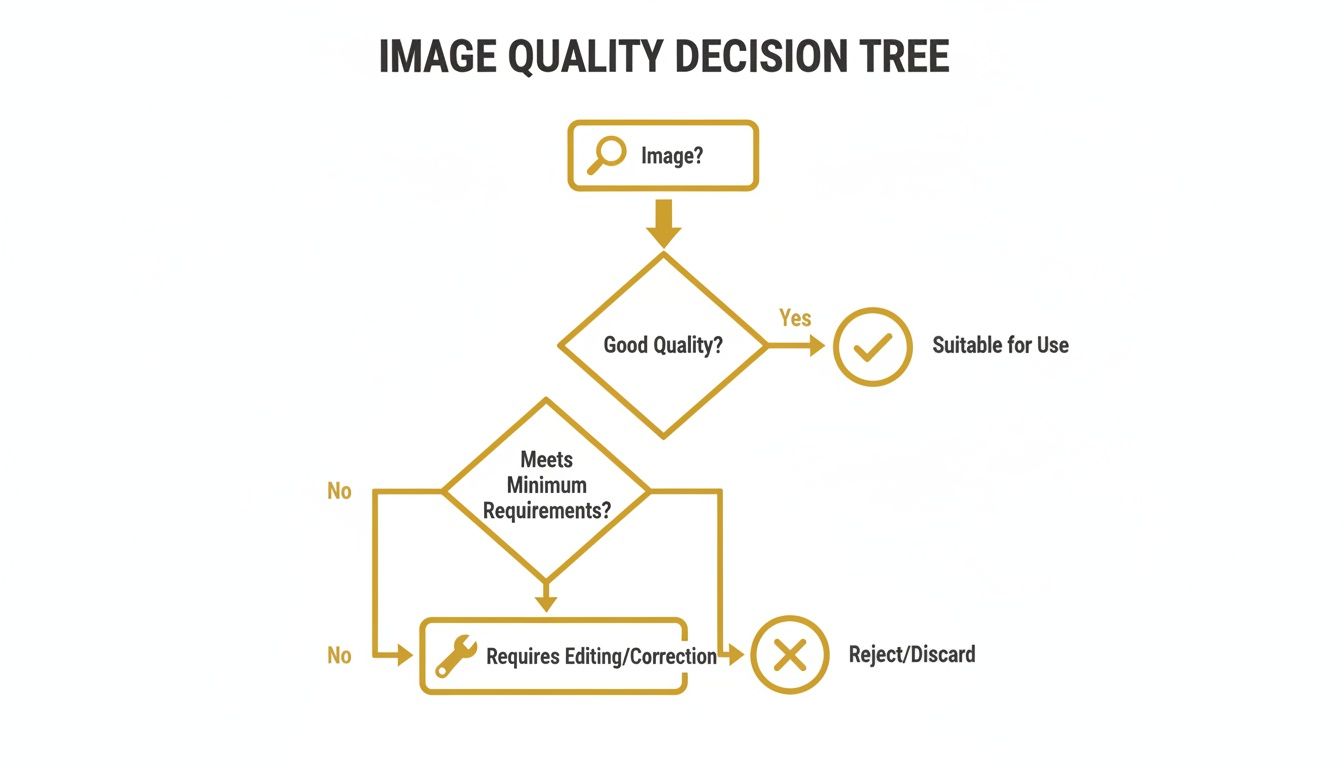
The takeaway here is pretty simple: a high-quality, well-defined image gives you the best shot at creating a stunning AI animation.
Which AI Motion Style Is Right for Your Project?
Deciding on the right animation type really comes down to your goal. Are you trying to add a subtle, atmospheric mood to a landscape photo, or do you want to make a portrait feel like it’s about to speak?
Picking the right style from the start is crucial. This table breaks down the main options to help you match your image and your goal with the best AI motion technique.
| Motion Style | Best For | Example Use Case | Prompt Focus |
|---|---|---|---|
| Cinematic Moves | Landscapes, architecture, product shots, still life | A slow pan across a mountain range at sunrise. | Camera direction, speed, and type (pan, zoom, tilt) |
| 3D Parallax | Images with clear foreground and background layers (e.g., portraits) | A person in front of a cityscape that moves subtly. | Depth, layer movement, and intensity of the effect. |
| Character Animation | Portraits of people, pets, or illustrated characters | Making a headshot subtly smile and blink. | Facial expressions, small body movements, and mood. |
Ultimately, cinematic moves are your go-to for setting a scene, parallax adds that pop of immersive depth, and character animation is what you need to breathe life directly into your subject.
Writing Prompts That Actually Work
Crafting a good prompt is more art than science. If you give vague commands, you'll get vague, uninspired results. The secret is to be specific without getting bogged down in jargon the AI won't understand.
Start with your primary action, then layer on modifiers to refine it. For example, instead of just writing "move," try "slow, smooth dolly forward." The words "slow" and "smooth" are crucial instructions that tell the AI about the quality and feel of the movement. This is a core concept that applies across the board when using AI for video creation, where a little nuance in your language goes a long way.
My personal tip? Think in layers. First, define the camera movement. Second, describe any subject animation. Third, add atmospheric details. For example: "slow zoom in, character's hair gently blowing in the wind."
This layered approach helps the AI understand the hierarchy of actions, leading to a much more coherent and believable video. The demand for this kind of detailed creative control is what's driving incredible growth in this space. The global market for AI video generation is projected to explode from USD 706.6 million in 2024 to an incredible USD 3,831.8 million by 2033, all thanks to creators and businesses needing to produce amazing content at scale.
Real-World Recipes for Creators and Ecommerce
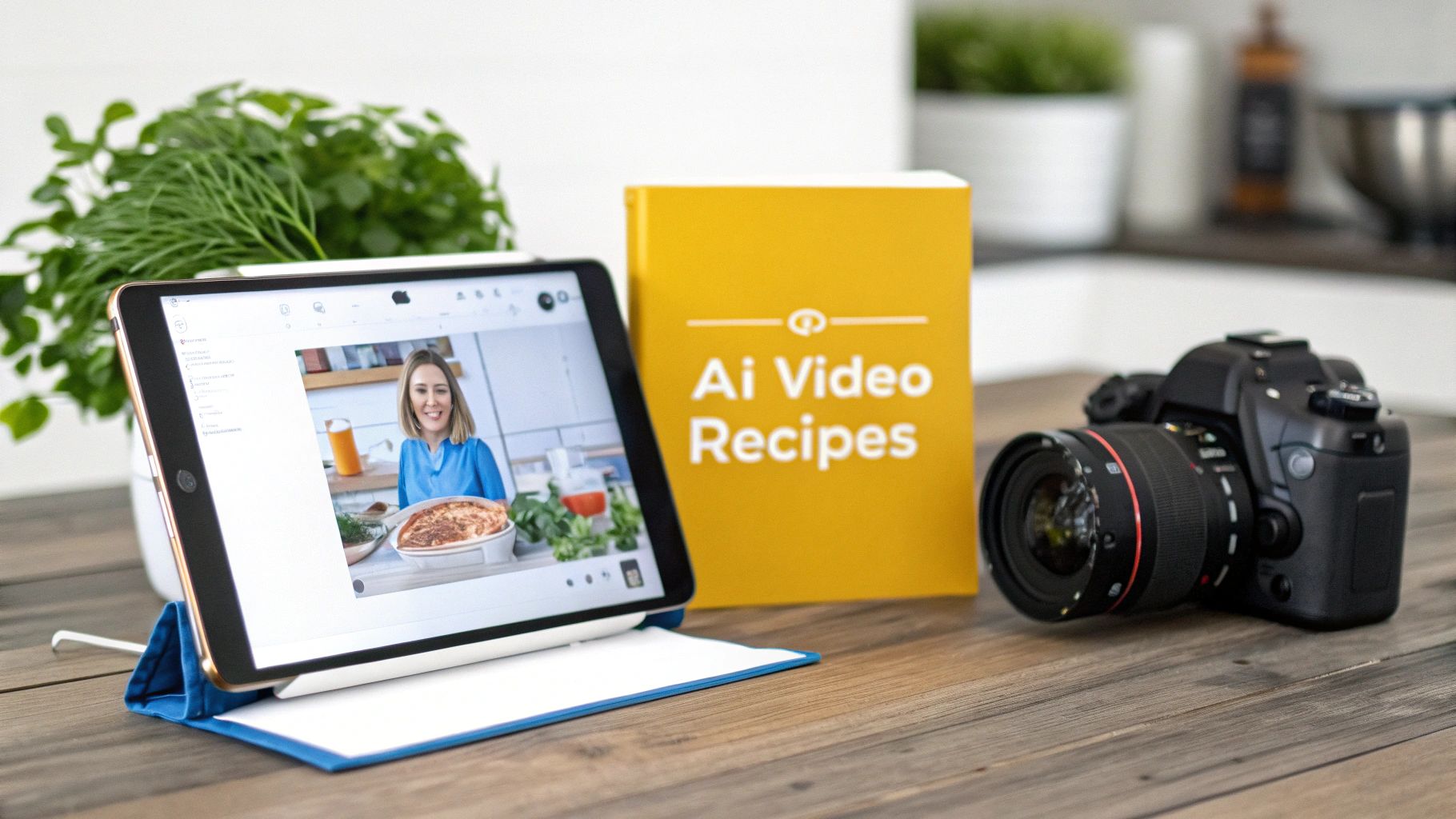
Okay, let's move past the theory and get our hands dirty. I'm going to walk you through a few specific, battle-tested recipes that show you exactly how to turn an image into a video with AI.
These are my go-to starting points for two main goals: helping creators stand out on social media and giving ecommerce brands a powerful new way to showcase their products. Think of them as proven formulas you can tweak for your own projects.
The Cinematic AI Portrait for Social Media
Ever wanted to make your static headshot or portrait feel alive on Instagram Reels or TikTok? This is how you do it. The goal isn't crazy animation, but a subtle, high-end video that stops the scroll.
Your Starting Image: A sharp, high-resolution portrait is a must. You need a clear subject and good, even lighting—bad lighting is the fastest way to get an unrealistic result.
The Right Motion: I’ve found the sweet spot is combining Cinematic Moves with a touch of Character Animation. This gives you that professional camera feel while breathing just enough life into your subject.
A Prompt That Works: Try something like this: “Slow, smooth dolly zoom forward. The subject's hair gently sways in a light breeze. A subtle smile appears. Background has a soft bokeh blur.”
This prompt gives the AI specific instructions: a gentle camera move, a bit of environmental realism (the hair), and a believable facial expression. The result is a portrait that feels dynamic without being over the top.
The secret to a killer cinematic portrait is subtlety. If the motion is too dramatic, it just looks fake. You're aiming for movements so natural that people feel the depth and engagement without consciously noticing the animation itself.
The 360° Product Spin Illusion
If you're in ecommerce, you know how crucial it is to show a product from every angle. This recipe creates a slick 360° spin from a single product photo—a total game-changer for product pages and ads.
Your Starting Image: You'll need a clean, high-resolution shot of your product on a simple, solid-colored background. Make sure the lighting is coming from the front to avoid weird shadows.
The Right Motion: This calls for a specific camera move, often labeled 3D Motion or Orbit. Not every AI tool has this feature, but when you find one that does, it's incredibly useful.
A Prompt That Works: Keep it direct: “Product on a seamless white background. Perform a slow, 360-degree horizontal orbit camera move around the object. Maintain consistent lighting.”
The AI takes this command and generates a video that looks like a camera is circling your product. This is gold for showing off items like sneakers, gadgets, or jewelry without needing an expensive photography rig.
And if you're serious about leveling up your online store, you might want to look into an AI product photo generator to create amazing source images from scratch.
Getting it Right: Refining Your Video and Dodging Common Pitfalls
That first moment when your static image starts moving is pure magic. But let's be honest, the first result is rarely perfect. This is where the real work—and the real artistry—comes in, turning a decent AI clip into something that looks polished and professional.
You’ll quickly spot the usual suspects: distracting flickers, weird background distortions, or motion that just feels a little too stiff and robotic. Maybe a slow camera pan creates a strange shimmer on a wall, or a person’s smile looks a little… off. These are the classic tells of AI animation, and our job is to smooth them out.
Keeping the Likeness and Taming the Motion
When you turn an image into a video with AI, especially with a person's face, holding onto the original likeness is everything. Nothing torpedoes a great concept faster than a final video where the subject is barely recognizable. This is a super common problem, but thankfully, it's fixable.
The key is to start with small, controlled changes. Look for a motion intensity or fidelity slider in whatever tool you're using. If a face is warping or the details are getting lost, dial that motion setting way back. A lower value forces the AI to stick closer to the source image, which is exactly what you want for preserving a person's likeness.
My go-to strategy here is to iterate, but do it carefully. Instead of throwing a completely new prompt at it, just tweak one thing at a time. Nudge the motion strength down a bit and regenerate. This lets you see exactly what impact each small change has.
Patience really pays off. It's how you get those high-fidelity animations that feel authentic.
Cleaning Up Your Video with Negative Prompts
One of the most powerful tools in your arsenal is the negative prompt. It’s your way of telling the AI what you don't want to see. If your video has blurry sections, flickering, or that dreaded "extra-finger" problem, you can specifically tell the AI to cut it out.
Adding a few exclusions can be a game-changer for cleaning up the final render. Here are a few of my most-used negative prompts for fixing common headaches:
- To fix visual glitches:
--no flickering, --no artifacts, --no grain - To improve clarity:
--no blur, --no low-resolution, --no distortion - To avoid that creepy look:
--no warping, --no extra limbs, --no uncanny valley
Think of negative prompts as guardrails. By clearly defining what to avoid, you give the AI a much clearer path to a high-quality result. It’s a non-negotiable step if you’re serious about making your AI videos look clean and professional.
Got Questions About Turning Images Into AI Videos? We've Got Answers.
Jumping into AI video can feel like a lot. You've probably got questions about how it works, what you can do with it, and even the legal side of things. I get it. When I first started experimenting with this tech, I had the same questions.
Let's clear things up. Here are straightforward answers to the most common things people ask when they're learning to turn an image into a video with AI.
How Long Will My Video Take to Generate?
This is the classic "it depends" answer, but for good reason. The time it takes really hinges on what you're asking the AI to do. A simple camera pan on a decent-quality photo? You could be looking at just a few minutes.
But if you're going for something more complex, like detailed character animation or a 4K parallax effect, the AI needs more time to cook. Most platforms I've used, like Runway or Pika, have paid plans that give you priority access, which is a lifesaver when you're on a deadline.
Can I Actually Use These AI Videos for My Business?
Yes, absolutely. But you have to pay attention to the terms of service. Almost every AI video tool offers commercial licenses as part of their paid subscriptions. This means you're cleared to use the content for:
- Social media ads and marketing content
- Product videos for your ecommerce store
- YouTube or TikTok videos you plan to monetize
Just double-check that your plan covers commercial use. It’s a simple step that saves you from any legal headaches down the road and lets you use your creations with confidence.
What Kind of Image Works Best for AI Animation?
The better the input, the better the output. It's a simple rule that holds true for all AI generation. For the best results, start with a high-resolution image where your subject is sharp, clear, and well-lit.
If you’re animating a person, a clear, front-facing portrait with a fairly neutral expression is the perfect canvas. For objects or scenes, an image with a distinct foreground and background is gold—it gives the AI much more to work with for creating believable depth and motion.
The biggest mistake I see people make is feeding the AI a blurry, poorly-lit photo and then being disappointed with the video. The AI isn't magic; it can only work with what you give it. A crisp source image is your number one priority.
How Can I Make Sure the Face Still Looks Like the Person in the Photo?
Keeping a consistent facial likeness is probably the trickiest part of turning an image into a video with AI. My best advice is to start with a high-quality photo and begin with very subtle motion prompts. Don't try to make the person do backflips on the first try.
Steer clear of photos with weird angles or harsh shadows, as these tend to confuse the AI model. Many of the more advanced tools also have specific settings—often called "fidelity" or "likeness"—that you can tweak. I find that making small, incremental adjustments to these sliders is the key to dialing in a result that looks just right.
Ready to see it in action? PhotoMaxi offers a powerful suite of tools designed to create stunning videos from your images, focusing on character consistency and professional-grade results. Start creating with PhotoMaxi today!
Related Articles


Ready to Create Amazing AI Photos?
Join thousands of creators using PhotoMaxi to generate stunning AI-powered images and videos.
Get Started Free